Release Notes
March 2020
What's New
In our March 2020 release, we’re introducing two new features in KACE Cloud Mobile Device Manager. First, Option Management, which is a single management location for creating Option Sets for both Android and iOS/tvOS. Second, the addition of Apple TV Support capabilities when setting up Apple TV for school or business.
We’ve also added functional enhancements, including a New Login Experience for SSO users, and our new App Library Filtering that lets an administrator select and apply multiple criteria to filter various subsets of apps.
Prior to the March 2020 release, the iOS restriction ‘Specify number of days before displaying the availability of an update’ was incorrectly enabled by default and set to 30 days. This restriction was sent to all supervised iOS devices if the restriction wasn't specifically disabled by the admin. Action required: To clear the default setting, an admin will need to manually disable the restriction. Once saved, the restriction set will be updated on all devices to which it’s been sent.
New Features
Option Management
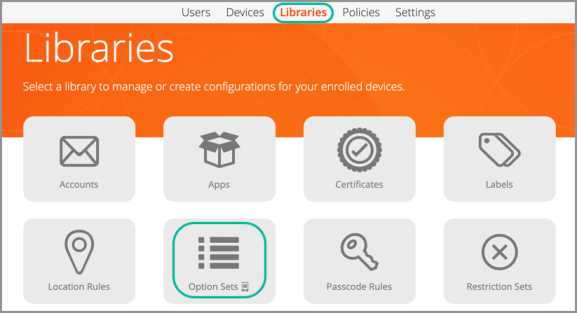
Our new Option Sets feature lets administrators manage both Android and iOS options in the same library space. Previously, options for Android were managed in an Android Options library, which has been replaced by Option Sets.
The following iOS commands can now be configured as part of an iOS option set:
- Enable Voice Roaming
- Enable Hotspot
- Enable Data Roaming
- Enable Activation Lock
- Set Wallpaper
_461x459.png)
The options shown above are only available for iOS supervised devices.
From the library section, admins can add a new Android, iOS, or tvOS option set as well as edit or remove an existing option set.
_749x196.png)
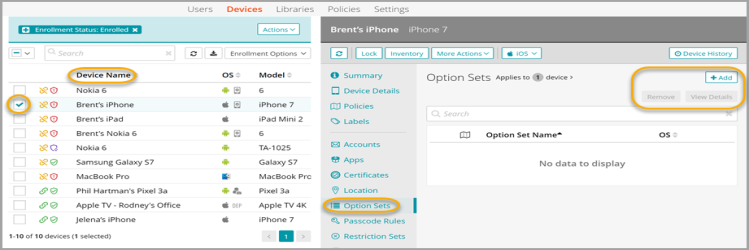
From the devices section, admins can choose one or more devices, then under the Option Sets tab in the right panel: add a new option set; view all option sets currently applied to the device(s); remove an option set; or view details for an option set.
Full instructions for working with option sets can be found in Configuring device option sets
Apple TV Support
Our new Apple TV capabilities can be configured and enrolled using one of three processes: Apple Configurator (AC2); Apple Device Enrollment Program (DEP); or a combination of the two (AC2 + DEP). tvOS enrollment instructions can be found in Enrolling tvOS devices.

Enhanced Functionality
App Library Filters
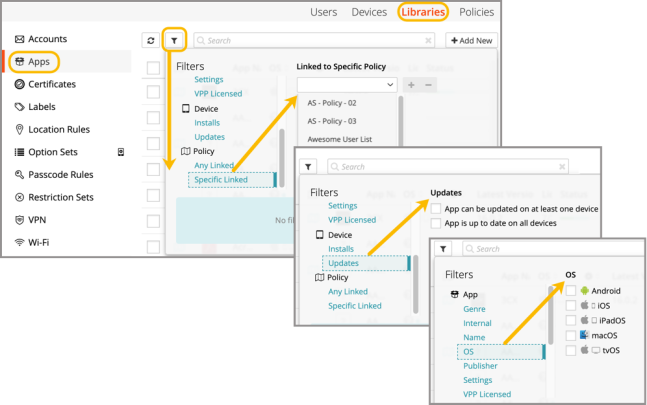
With new app library filters, an admin can select and apply multiple filter criteria to pare down a full app library list. Filtering capabilities include top-level categories as well as sub-type filters—including Apps: Genre, OS, Publisher, and more; Devices: Installs and Updates; and Policy: 'Any linked' or 'Specific-linked'.
New Login Experience
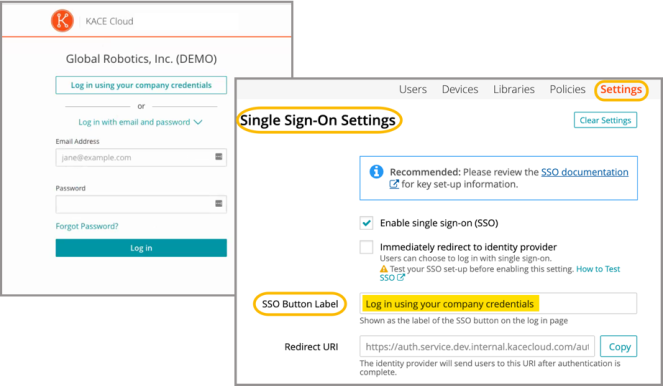
Our new login experience simplifies the workflow for SSO users, and includes an option to customize the login button label. Non-SSO users can still log in as normal, using their KACE Cloud credentials.
Resolved Issues
Bug fixes are included in the resolved issues list for two release periods and are then retired.
| Issue | Description | Status |
| ESMCL-3775 Admin Portal: Row selection state - unintended row stays selected | Internal selection state now matches selection in device table. Previously selected rows will not stay selected. | FIXED |
| ESMCL-3630 Android Enrollment Timeout | Android enrollment could time out if the subscription contained complex policies or smart labels. | FIXED |
| ESMCL-3598 Checking “Allow access only to specified bookmarked URLs” restriction. | When editing an iOS restriction set in the library, checking the restriction “Allow access only to specified bookmarked URLs” would cause JavaScript errors. | FIXED |
Known Issues
Additional Resources
Getting Started with KACE Cloud MDM
© 2020 Quest Software Inc.
ALL RIGHTS RESERVED.
This guide contains proprietary information protected by copyright. The software described in this guide is furnished under a software license or nondisclosure agreement. This software may be used or copied only in accordance with the terms of the applicable agreement. No part of this guide may be reproduced or transmitted in any form or by any means, electronic or mechanical, including photocopying and recording for any purpose other than the purchaser’s personal use without the written permission of Quest Software Inc.
The information in this document is provided in connection with Quest Software products. No license, express or implied, by estoppel or otherwise, to any intellectual property right is granted by this document or in connection with the sale of Quest Software products. EXCEPT AS SET FORTH IN THE TERMS AND CONDITIONS AS SPECIFIED IN THE LICENSE AGREEMENT FOR THIS PRODUCT, QUEST SOFTWARE ASSUMES NO LIABILITY WHATSOEVER AND DISCLAIMS ANY EXPRESS, IMPLIED OR STATUTORY WARRANTY RELATING TO ITS PRODUCTS INCLUDING, BUT NOT LIMITED TO, THE IMPLIED WARRANTY OF MERCHANTABILITY, FITNESS FOR A PARTICULAR PURPOSE, OR NON-INFRINGEMENT. IN NO EVENT SHALL QUEST SOFTWARE BE LIABLE FOR ANY DIRECT, INDIRECT, CONSEQUENTIAL, PUNITIVE, SPECIAL OR INCIDENTAL DAMAGES (INCLUDING, WITHOUT LIMITATION, DAMAGES FOR LOSS OF PROFITS, BUSINESS INTERRUPTION OR LOSS OF INFORMATION) ARISING OUT OF THE USE OR INABILITY TO USE THIS DOCUMENT, EVEN IF QUEST SOFTWARE HAS BEEN ADVISED OF THE POSSIBILITY OF SUCH DAMAGES. Quest Software makes no representations or warranties with respect to the accuracy or completeness of the contents of this document and reserves the right to make changes to specifications and product descriptions at any time without notice. Quest Software does not make any commitment to update the information contained in this document.
If you have any questions regarding your potential use of this material, contact:
Quest Software Inc.
Attn: LEGAL Dept.
4 Polaris Way
Aliso Viejo, CA 92656
Refer to our website (www.quest.com) for regional and international office information.
Patents
Quest Software is proud of our advanced technology. Patents and pending patents may apply to this product. For the most current information about applicable patents for this product, please visit our website at www.quest.com/legal.
Trademarks
Quest and the Quest logo are trademarks and registered trademarks of Quest Software Inc. in the U.S.A. and other countries. For a complete list of Quest Software trademarks, please visit our website at www.quest.com/legal. All other trademarks, servicemarks, registered trademarks, and registered servicemarks are the property of their respective owners.